

Surprisingly, I haven’t really had the need to grab variables from specific events within an eventlog directly until very recently – I normally utilize an event management platform or SIEM.
Imagine a scenario where you wish to trap something every time a specific event occurs on a specific server. Yes, there are many event management tools and platforms out there; but what if you are running in some special Tier 0 environment where such things are taboo. What if you do not have an event management platform?
There are many ways to achieve the desired results – at the most basic level, you could process something like this using a scheduled task.
There’s quite a number of methods by which a scheduled task may be triggered – chances are you already know most of them. Trigger by date, time, at log in, trigger based on event and many more.
Sure, I can trigger a scheduled task based on an event – but! How can I get data from the actual event to my script as a variable?
I didn’t find anything all that comprehensive out there so I thought I would put up this article that may hopefully help someone one day.
Scheduled Task – ValueQueries: Get Data as variables from an Event
It turns out that it isn’t possible to get data from events and store them as variables for processing by a script using the Scheduled Task GUI. You CAN do this by tweaking an exported schedule task’s XML file: At the most basic level, this involves exporting, modifying and re-importing a schedule task.
In order to clearly demonstrate this, let’s take a fictitious use case:
I want to run a script every time my CA issues a certificate. I want to feed in the certificate request number and Requester from each Windows Event into a powershell script that will email me. I will call that script cert.ps1. If you really want an example of a script like this, feel free to pop a comment on this post and I’ll have a think about it. The purpose of this post is just to demonstrate that parameters can be pushed to a script (not the script itself).
Trapping CA Event 52 – Certificate Issued
Separate to setting up a scheduled task, for my fictitious use-case, my CA must also have a loglevel of 4 configured and auditing must be enabled.
Eg; In the screenshot below, the LogLevel value of a CA called “UAT-Issuing-CA” Is 4:

Once configured, we need to be looking for Event 52 > Certification Authority within the Application Log of the CA.
The simple lab for this example consists of:
A Domain Controller
An Offline ADCS Root CA
An Issuing CA
For the purpose of this example, I will be working with events on the Issuing CA and we will simply be showing how to call a script with parameters from an event.
Here is an example Event 52:
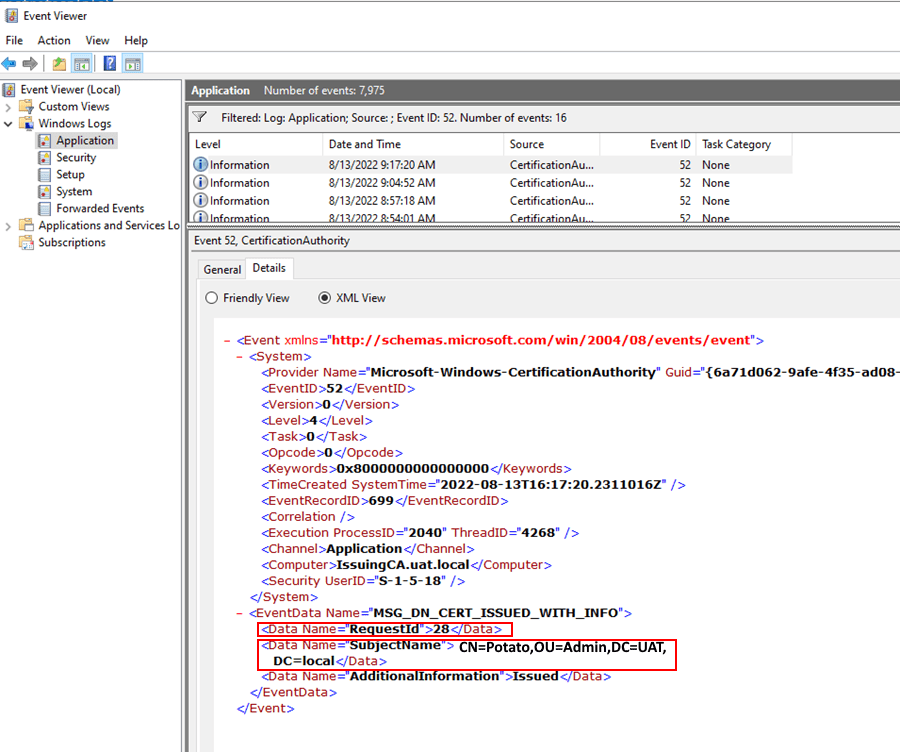
Note that in this example, there are two pieces of information of interest under the EventData section; “RequestId” and “SubjectName”. We want to access these values when processing an Event 52
Create a schedule task based on event 52:
Log: Application;
Source: CertificationAuthority
Event ID 52.
NOTE: You could use the custom radio check box and define multiple if you feel like processing multiple events in a single task
Give the scheduled task a name, run it as System and choose whether it runs with highest privileges or not, perhaps you’d like to define the actions:


NOTE: On the settings tab, be sure to set the task so that multiple tasks can run in parallel; this is in the case where multiple certificates are issued at around the same time – without changing this setting, events may be missed:

From here we need to close this dialogue off and save the task. We then want to export the task:

Here’s an example default export of the scheduled task above:
<?xml version="1.0" encoding="UTF-16"?>
<Task version="1.2" xmlns="http://schemas.microsoft.com/windows/2004/02/mit/task">
  <RegistrationInfo>
    <Date>2022-12-6T18:28:31.4227522</Date>
    <Author>UAT\administrator</Author>
    <URI>\Certificate Processing</URI>
  </RegistrationInfo>
  <Triggers>
    <EventTrigger>
      <Enabled>true</Enabled>
      <Subscription><QueryList><Query Id="0" Path="Application"><Select Path="Application">*[System[Provider[@Name='Microsoft-Windows-CertificationAuthority'] and EventID=52]]</Select></Query></QueryList></Subscription>
    </EventTrigger>
  </Triggers>
  <Principals>
    <Principal id="Author">
      <UserId>S-1-5-18</UserId>
      <RunLevel>LeastPrivilege</RunLevel>
    </Principal>
  </Principals>
  <Settings>
    <MultipleInstancesPolicy>IgnoreNew</MultipleInstancesPolicy>
    <DisallowStartIfOnBatteries>true</DisallowStartIfOnBatteries>
    <StopIfGoingOnBatteries>true</StopIfGoingOnBatteries>
    <AllowHardTerminate>true</AllowHardTerminate>
    <StartWhenAvailable>false</StartWhenAvailable>
    <RunOnlyIfNetworkAvailable>false</RunOnlyIfNetworkAvailable>
    <IdleSettings>
      <StopOnIdleEnd>true</StopOnIdleEnd>
      <RestartOnIdle>false</RestartOnIdle>
    </IdleSettings>
    <AllowStartOnDemand>true</AllowStartOnDemand>
    <Enabled>true</Enabled>
    <Hidden>false</Hidden>
    <RunOnlyIfIdle>false</RunOnlyIfIdle>
    <WakeToRun>false</WakeToRun>
    <ExecutionTimeLimit>PT72H</ExecutionTimeLimit>
    <Priority>7</Priority>
  </Settings>
  <Actions Context="Author">
    <Exec>
      <Command>powershell.exe</Command>
      <Arguments>-file C:\scripts\cert.ps1 -requestID "$(RequestId)" -SubjectName "$(SubjectName)"</Arguments>
    </Exec>
  </Actions>
</Task>
In order to add the two values to the scheduled task for later processing, we must add in the <ValueQueries> Section and define our values that should be parsed through the scheduled task. See below:
<?xml version="1.0" encoding="UTF-16"?>
<Task version="1.2" xmlns="http://schemas.microsoft.com/windows/2004/02/mit/task">
  <RegistrationInfo>
    <Date>2022-12-06T18:28:31.4227522</Date>
    <Author>UAT\administrator</Author>
    <URI>\Certificate Processing</URI>
  </RegistrationInfo>
  <Triggers>
    <EventTrigger>
      <Enabled>true</Enabled>
      <Subscription><QueryList><Query Id="0" Path="Application"><Select Path="Application">*[System[Provider[@Name='Microsoft-Windows-CertificationAuthority'] and EventID=52]]</Select></Query></QueryList></Subscription>
      <ValueQueries>
        <Value name="RequestId">Event/EventData/Data[@Name="RequestId"]</Value>
        <Value name="SubjectName">Event/EventData/Data[@Name="SubjectName"]</Value>
      </ValueQueries>
    </EventTrigger>
  </Triggers>
  <Principals>
    <Principal id="Author">
      <UserId>S-1-5-18</UserId>
      <RunLevel>LeastPrivilege</RunLevel>
    </Principal>
  </Principals>
  <Settings>
    <MultipleInstancesPolicy>IgnoreNew</MultipleInstancesPolicy>
    <DisallowStartIfOnBatteries>true</DisallowStartIfOnBatteries>
    <StopIfGoingOnBatteries>true</StopIfGoingOnBatteries>
    <AllowHardTerminate>true</AllowHardTerminate>
    <StartWhenAvailable>false</StartWhenAvailable>
    <RunOnlyIfNetworkAvailable>false</RunOnlyIfNetworkAvailable>
    <IdleSettings>
      <StopOnIdleEnd>true</StopOnIdleEnd>
      <RestartOnIdle>false</RestartOnIdle>
    </IdleSettings>
    <AllowStartOnDemand>true</AllowStartOnDemand>
    <Enabled>true</Enabled>
    <Hidden>false</Hidden>
    <RunOnlyIfIdle>false</RunOnlyIfIdle>
    <WakeToRun>false</WakeToRun>
    <ExecutionTimeLimit>PT72H</ExecutionTimeLimit>
    <Priority>7</Priority>
  </Settings>
  <Actions Context="Author">
    <Exec>
      <Command>powershell.exe</Command>
      <Arguments>-file C:\scripts\cert.ps1 -requestID "$(RequestId)" -SubjectName "$(SubjectName)"</Arguments>
    </Exec>
  </Actions>
</Task>
Once the <ValueQueries> section has been created within the exported XML file, the existing task must be deleted and the modified XML file needs to be imported as a scheduled task. The values will then be made available to the script, which has been declared in the arguments section. Be mindful that this is case sensitive.
I encourage you to experiment in your lab environment.
The sky is the limit
You could go crazy and tune this to only alert on certain conditions – you could even have it process multiple event ids – Maybe also trap Event 25 (when a certificate is revoked).
I hope this helps in some way.


I would love to see your script, as I would like to compare what you got working with something I have in-progress
Very happy to have found your post! This solution is exactly what I was looking for and (as you discovered) there is almost nothing that hits this exact topic in Google results. Thank you for writing this!
This post (and your youtube video) was very helpful. Thanks for sharing.